AI Connection
Use this guide to connect your AI app to OnePost. There’s nothing to download. All you need is the URL and a key.
Quick Connect (Sign-In Only)
In ChatGPT and Claude, you can connect by signing in to OnePost without copying a key.
- In your AI app, add a custom connector (custom MCP server). For the URL, enter
https://1post.kr/mcp. If asked for an authentication method, select OAuth, then leave the header and key fields blank.- ChatGPT: chatgpt.com/plugins → Add → Add custom MCP server
- Claude: Settings → Connectors → Add custom connector
- Select ‘Connect’ to open OnePost. Sign in if prompted.
- On the ‘Allow AI Connection’ screen, check which app is requesting access (ChatGPT or Claude) and what it can do. Choose the store to connect and select Allow.
- Return to your AI app to finish connecting. Try asking “Show me my OnePost stores.”
Quick Connect follows the same rules as connecting with a key. Each social post requires confirmation in the chat, and publishing limits and duplicate prevention still apply. Decline the request if the authorization screen opens at an unfamiliar URL.
Connect ChatGPT with a Key (3 Steps)
You can connect from the ChatGPT desktop app or the web (chatgpt.com/plugins → Add → Add custom MCP server).
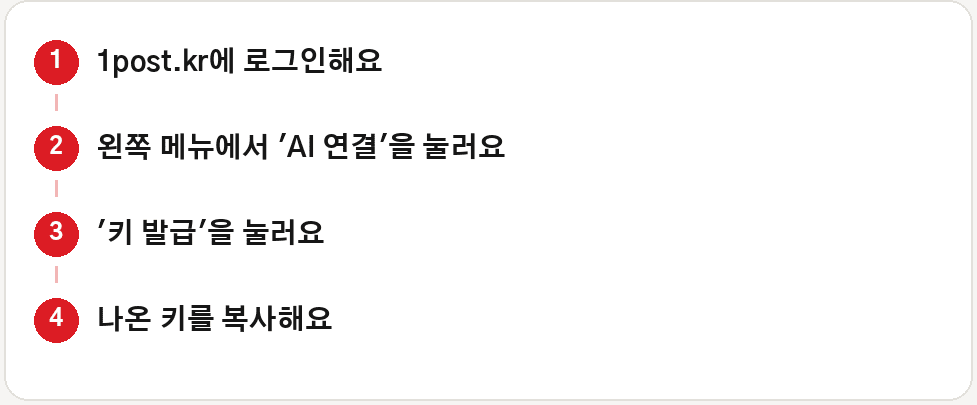
1. Copy your connection key
Sign in to 1post.kr, open ‘AI Connection’ in the left menu, and select ‘Generate Key’. Then copy the key.
2. Paste it into ChatGPT
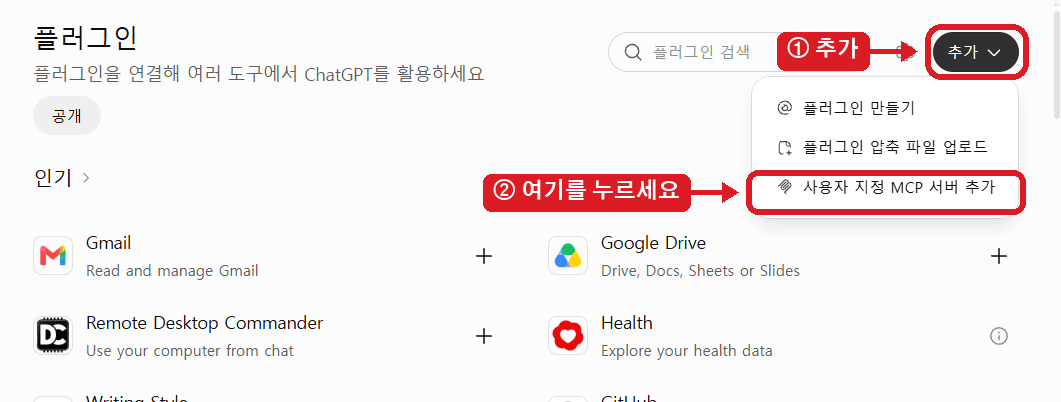
On the web, enter chatgpt.com/plugins in your address bar. Select ‘Add’ in the top right, then choose ‘Add custom MCP server’.
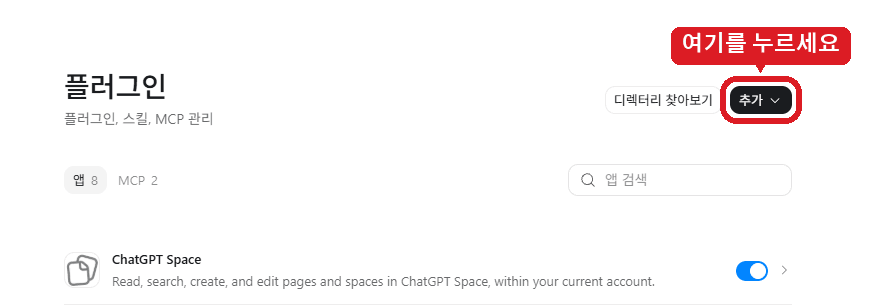
In the desktop app, go to Settings → Plugins → Add → Add MCP server.
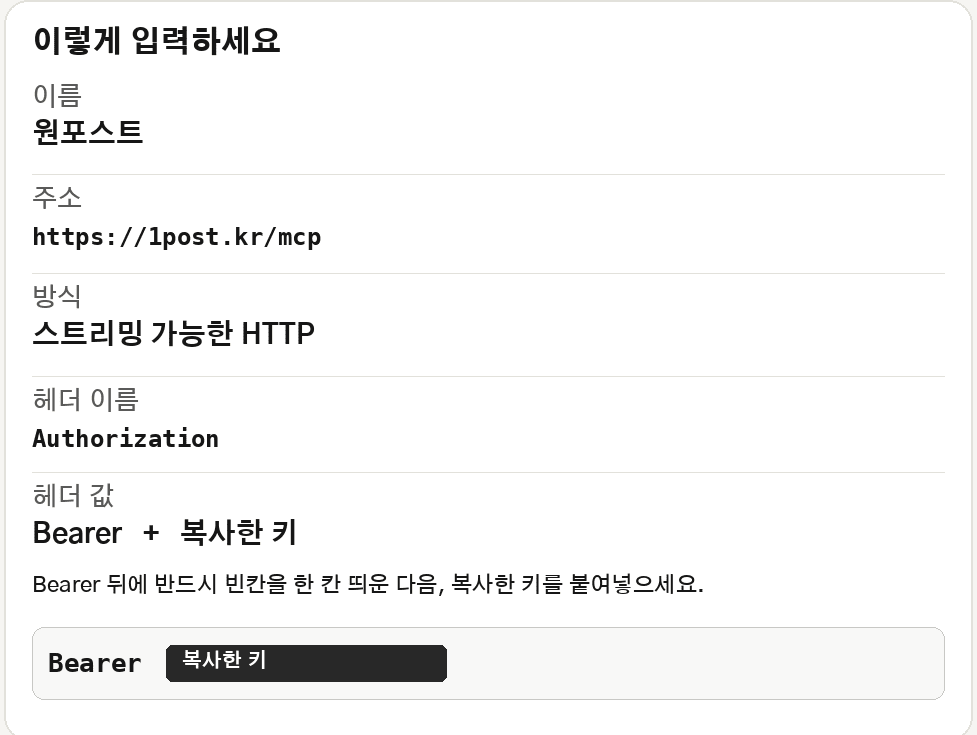
In the setup form, enter OnePost as the name and https://1post.kr/mcp as the URL. Select Streamable HTTP as the transport and enter Authorization as the header name. For the header value, type Bearer followed by a single space and paste your key.
3. Try asking ChatGPT
In a new chat, try asking “Show me my OnePost stores.”
Treat your connection key like a password. Keep it private.
What OnePost MCP Can Do
MCP connects your AI app to the OnePost server. The AI can view this store’s channels and prepare post and video drafts. Drafts stay unpublished until you confirm in the chat and publishing begins.
What You Can Do with AI
| Features | Supported | Tool Name |
|---|---|---|
| View Store and Channel Connection Status | Supported | list_clients, list_channels |
| Upload Videos and Photos (Up to 20 Photos per Carousel) | Supported | upload_media, get_upload_link, list_uploads |
| Create or Edit Drafts | Supported | create_draft, update_draft, get_draft |
| Place Images in Blogger Posts ([사진1], [사진2]) | Supported | create_draft, update_draft, publish_draft |
| Blogger Title, Labels, and Search Description | Supported (labels are published, but the API cannot populate the search description field) | create_draft, update_draft |
| Publish Now | Supported (requires confirmation in the chat) | publish_draft |
| Schedule a Post | Supported (Korea Standard Time, up to 3 days ahead, with confirmation in the chat) | create_draft/update_draft with scheduledAt → publish_draft |
| View Scheduled Posts | Supported (your own scheduled posts only) | list_scheduled |
| Cancel Schedule | Supported (requires confirmation in the chat) | cancel_scheduled |
| Check Publishing Results | Supported (show the user the post links for each channel when publishing finishes) | get_job |
| Get Social Channel Connection Links | Supported (you must select Connect yourself) | get_connect_link |
| View Channel Analytics | Supported | get_channel_analysis |
| Change Scheduled Time | Cancel and Reschedule | cancel_scheduled → create_draft |
| Publish to Naver Clip | Unsupported (Windows App Only) | - |
| Edit or Delete Published Posts | Unsupported | - |
Enter the scheduled time in Korea Standard Time, for example 2026-11-27T00:05. Scheduled posts are saved on the server and persist after restarts. They also appear under ‘Scheduled Posts’ and ‘Job List’ in the web console.
Connection URL
https://1post.kr/mcp
Generate KeyWhen Generating a Key
- The full key appears only when you generate it. Copy it before leaving that screen.
- Select only the permissions you need for this key: view channels, upload files, create drafts, or check job status.
- Publishing requires confirmation in the chat, even when you connect with a key.
- The value
opm_...in this guide is a sample. Use your own key to connect.
Connection Steps
- Sign in to OnePost, then select AI Connection in the left menu to open this page.
- Select Generate Key, then copy the key.
- Enter the connection URL and request header in your AI app. Use
Authorizationas the header name andBearer opm_...as its value. - Ask AI to create a draft. Review the summary in the chat and confirm to publish immediately.
Where to Connect
Enter https://1post.kr/mcp as the connection URL and set the Authorization request header to Bearer opm_.... Connection and list retrieval were verified with this method on Nov 7, 2026.
Claude’s official guide describes how to provide a static key in a request header. If the connector setup screen has a request header field, enter Authorization as the name and Bearer opm_... as the value. If the screen only offers sign-in (OAuth), use Quick Connect above.